
Invoices #
As a Customer in Cloud7, you have access to a comprehensive view of all your invoices under the “Invoices” menu. This feature provides critical insights into the billing and payment status of all associated resource subscriptions.
Each invoice within the system displays essential details, including the invoiced amount, applicable tax rate, and the issue date. The status of each invoice is clearly indicated, allowing for efficient monitoring and management of payments. This visibility helps you ensure that all financial transactions are tracked accurately and any outstanding payments are promptly addressed.
Invoices contain detailed information about resource consumption and associated bills. Cloud7’s billing system is designed to generate a separate invoice for each Resource Subscription. This approach ensures clarity and precision, as each Resource Subscription has its own billing cycle, distinct from other subscriptions. This separation facilitates a clear understanding of costs and resource usage.
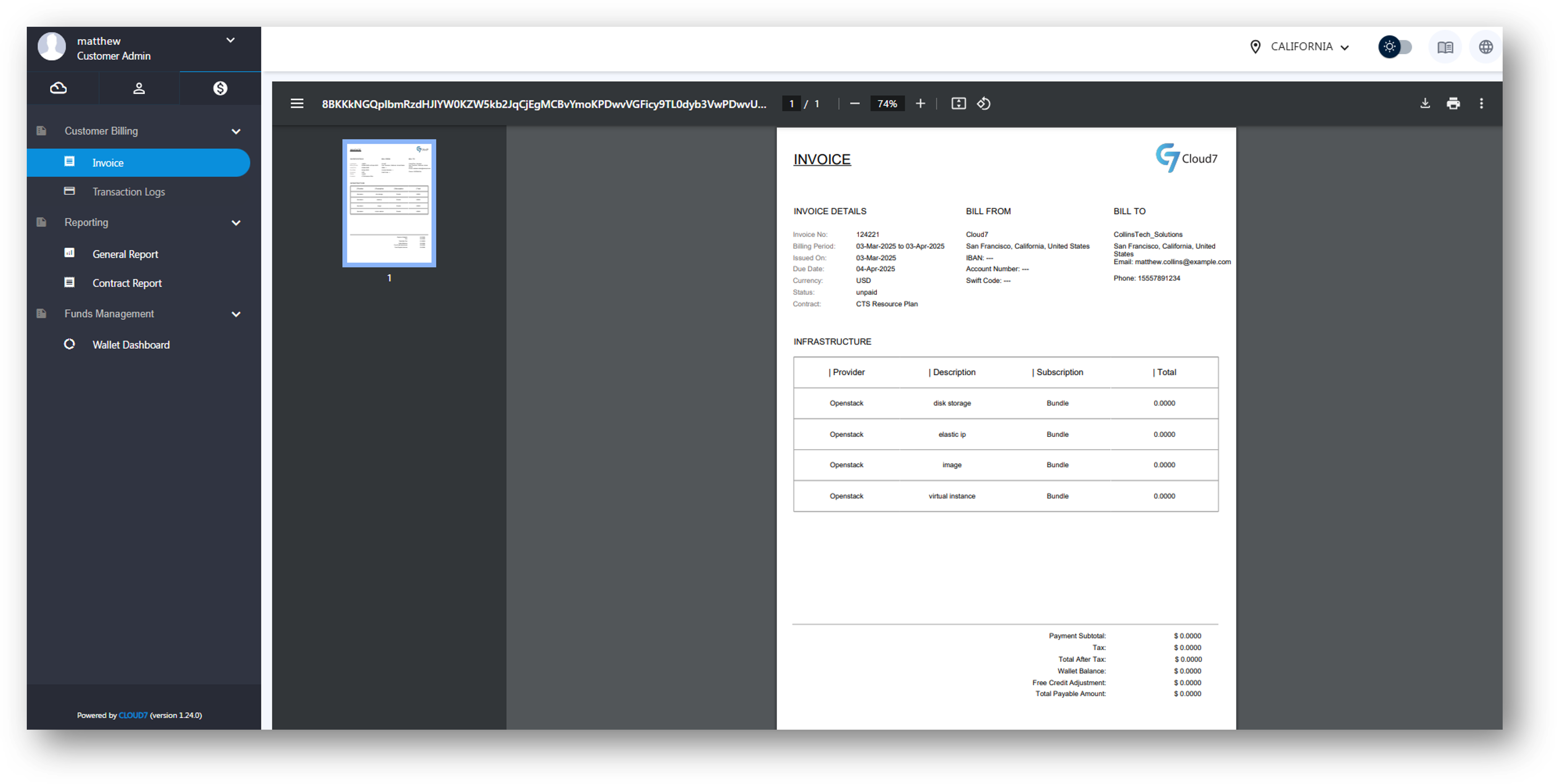
By leveraging the “Invoices” menu, you can effectively manage and oversee the financial aspects of your organization, ensuring that billing is accurate, transparent, and up-to-date.
As a Customer, you can define the time range using the search filter available on the invoices listing page. Additionally, you can also capture the online payment for an invoice if the auto deduction is disabled.
For reconciliation purposes and integration with external systems, Cloud7 also offers an option to export invoices. This feature enables you to easily transfer and manage billing data outside of Cloud7, facilitating seamless financial reconciliation and analysis in your preferred accounting or enterprise resource planning (ERP) systems.


List Invoices #
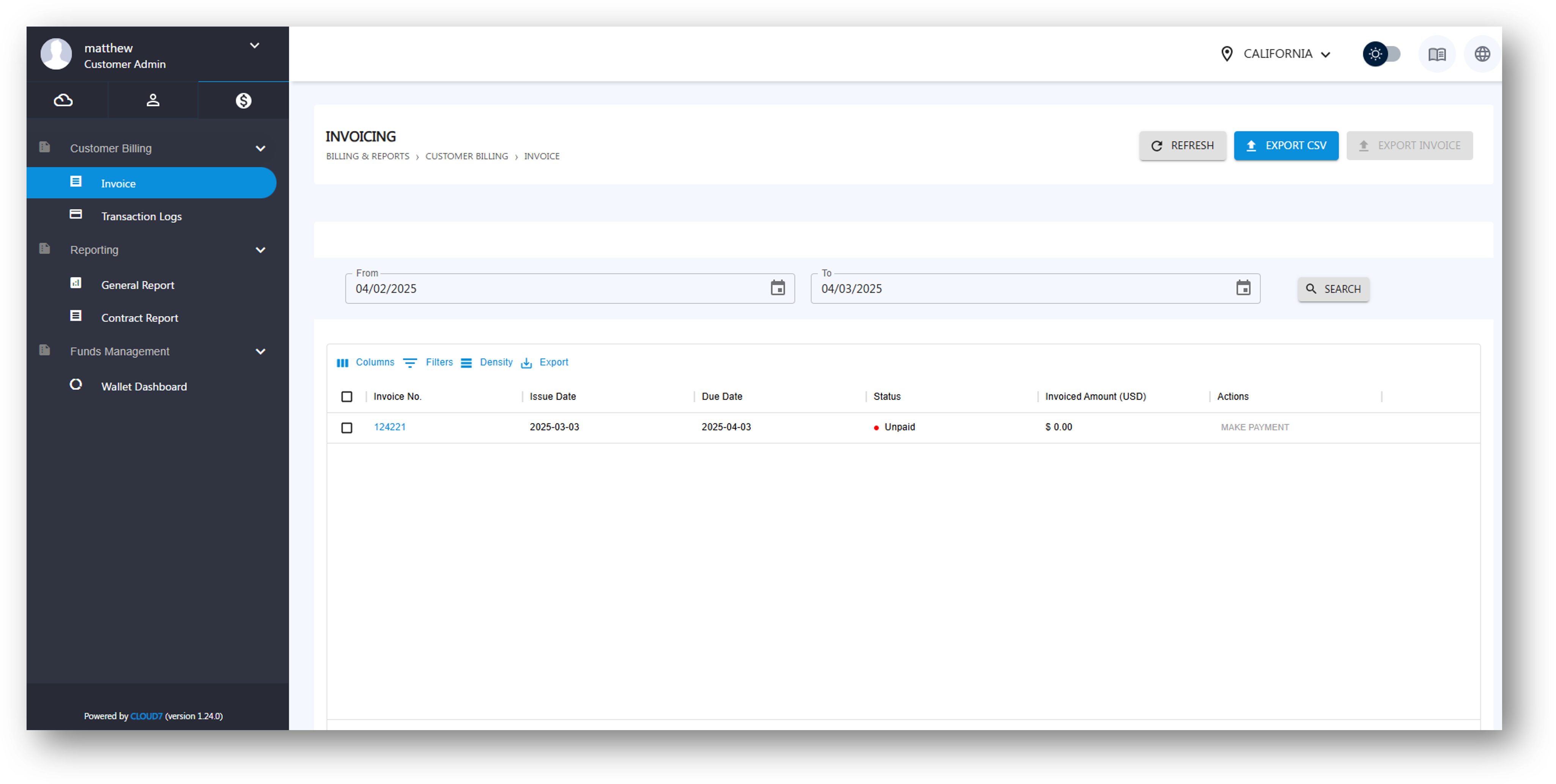
- To view Invoices section, log in with your account credentials (or a staff member with the necessary privileges) and navigate through the menu path: Billing & Reports >> Customer Billing >> Invoices.
- On this page, you will be able to see all the invoices generated for your organization by the administrator.
- Use “Export CSV” button to export the entire list of all the invoices with their statuses and other relevant details.
- Select an invoice and click on “Export Invoice” button to export it in PDF format.
- Select “Capture Payment” to deduct the due amount from associated organization’s configured online payment method like credit card.
Transaction Logs #
Cloud7 maintains a comprehensive transactional journal in the form of Transaction Logs. These logs offer detailed insights into your financial activities, including total income and expenses. By meticulously recording each transaction, Cloud7 ensures that you have a clear and accurate view of your financial performance. This feature enables you to monitor expenses, and maintain a transparent and accountable financial record.
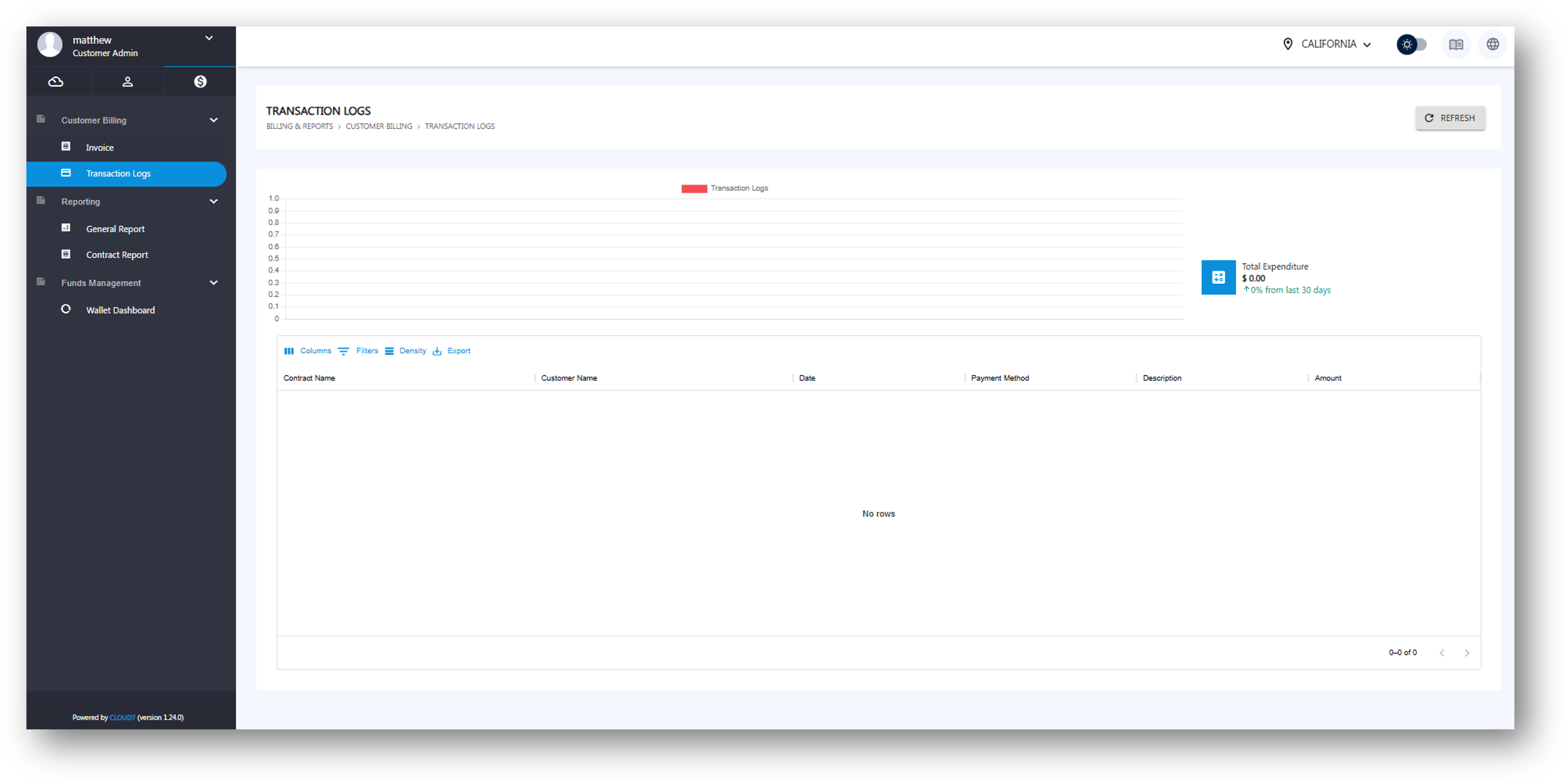
- To view Transaction Logs, log in with your account credentials (or a staff member with the necessary privileges) and navigate through the menu path: Billing & Reports >> Customer Billing >> Transaction Logs.
- On this page, all the inbound and outbound transactions, including payments from online or offline methods, wallet credits top-ups, free credit allocations and other adjustments are listed.