
Elastic IPs (EIPs) are public IP addresses that can be dynamically assigned to virtual instances, allowing external network access. In Cloud7, customers can create, manage, and attach EIPs to virtual instances for seamless connectivity.
Elastic IPs enable flexible public IP allocation for instances in Cloud7. Customers can create, assign, and release EIPs as needed, ensuring seamless connectivity for their workloads.
List Elastic IPs #
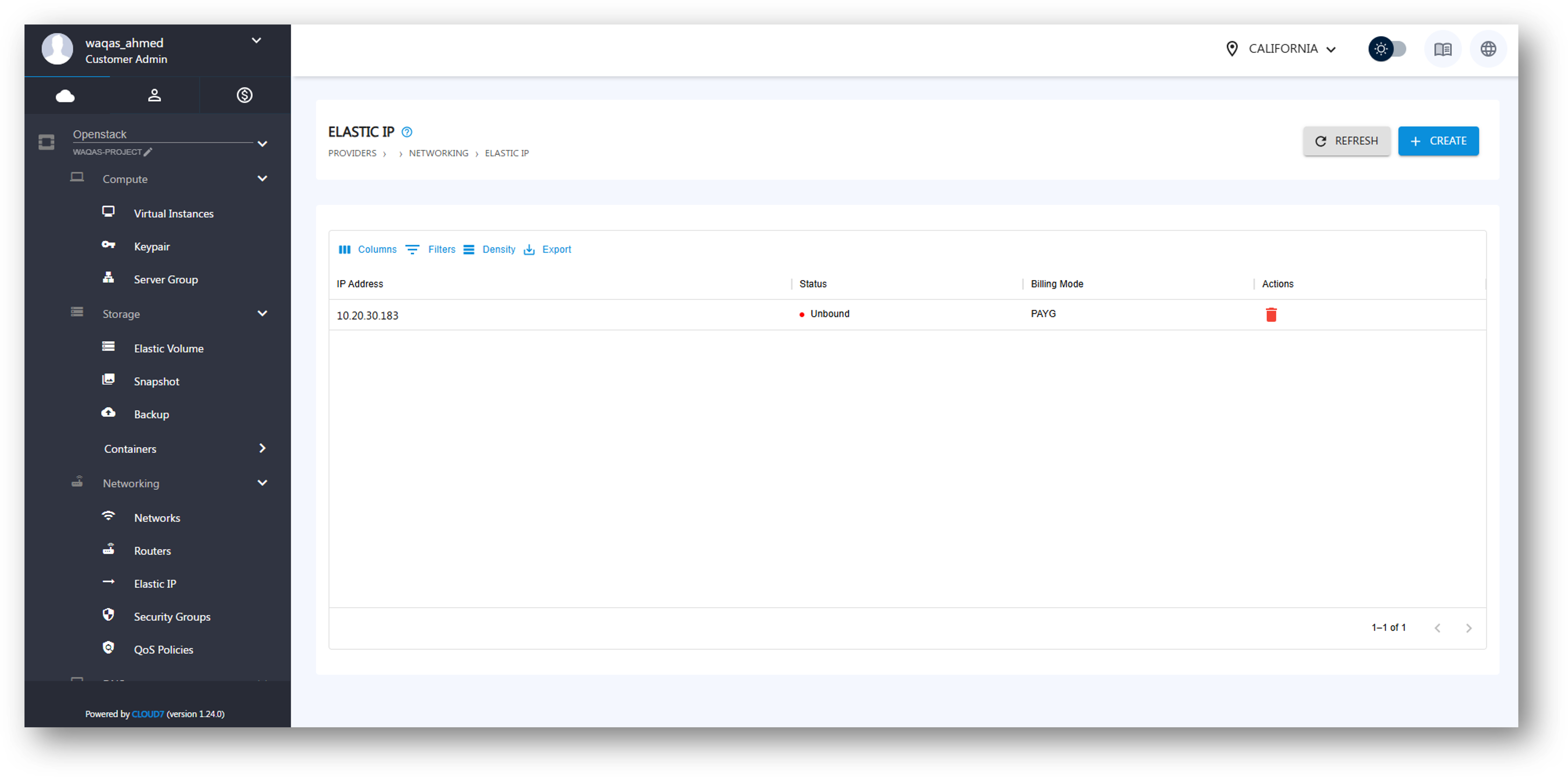
To view existing Elastic IPs:
- Login to the Cloud7 customer interface.
- Navigate to Providers >> OpenStack >> Networking >> Elastic IP.
- The listing page displays the following columns:
- IP Address: The allocated public IP.
- Status: Indicates whether the IP is available, in use, or inactive.
- Billing Mode: Shows the selected billing option (PAYG, Bundle, Reservation).
- Actions: Provides options to manage the Elastic IP.
Create Elastic IP #
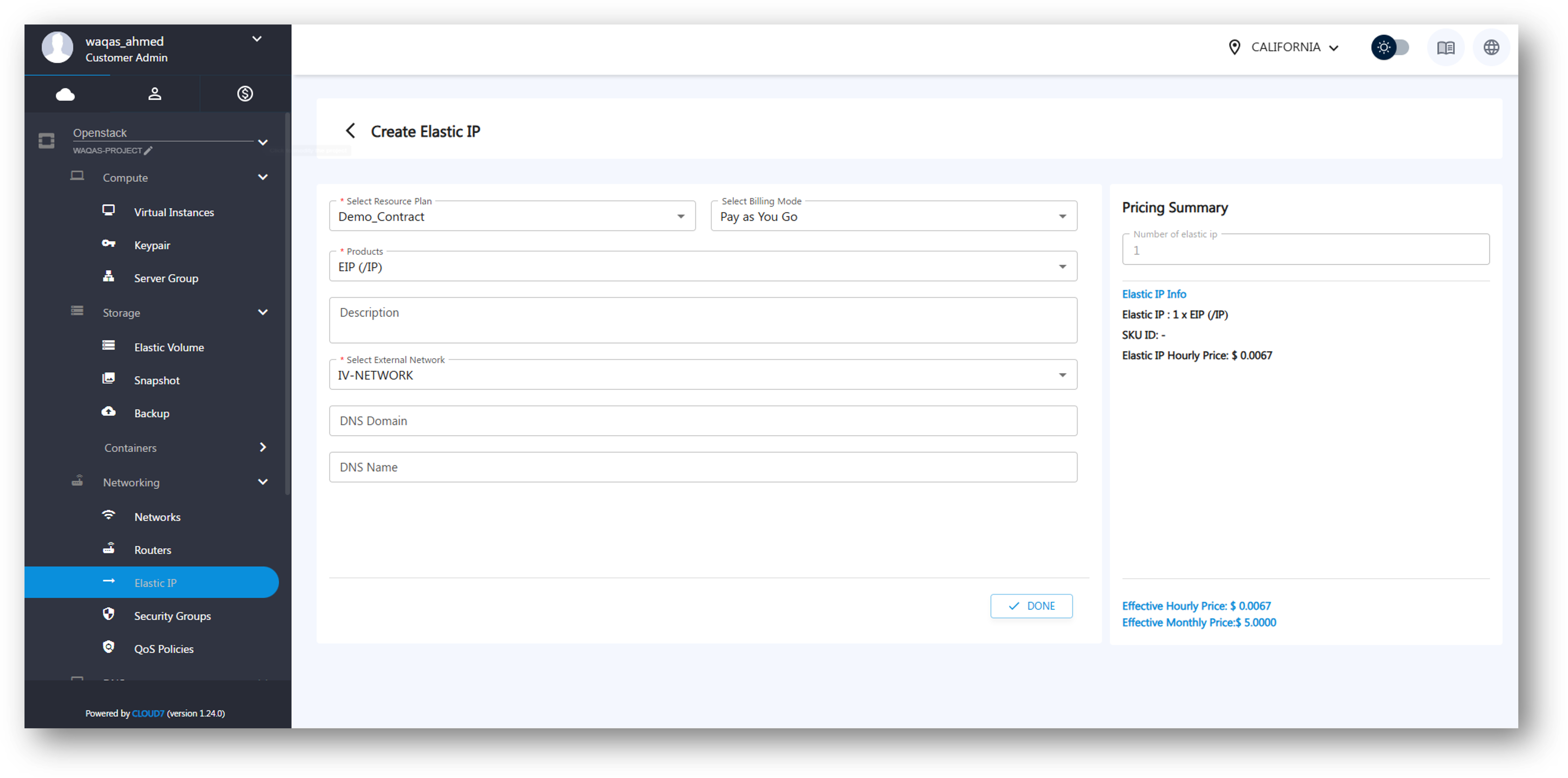
To allocate a new Elastic IP:
- Click on the Create button.
- Fill in the following details:
- Select Resource Plan: Choose the resource plan for the EIP allocation.
- Select Billing Mode: Choose from Pay-as-you-go (PAYG), Bundle, or Reservation.
- Products: Select the specific product offering for the EIP.
- Description: Enter a brief description (optional).
- Select External Network: Choose the external network to which the EIP will be assigned.
- DNS Domain: Specify the DNS domain (if applicable).
- DNS Name: Assign a custom DNS name for the Elastic IP (optional).
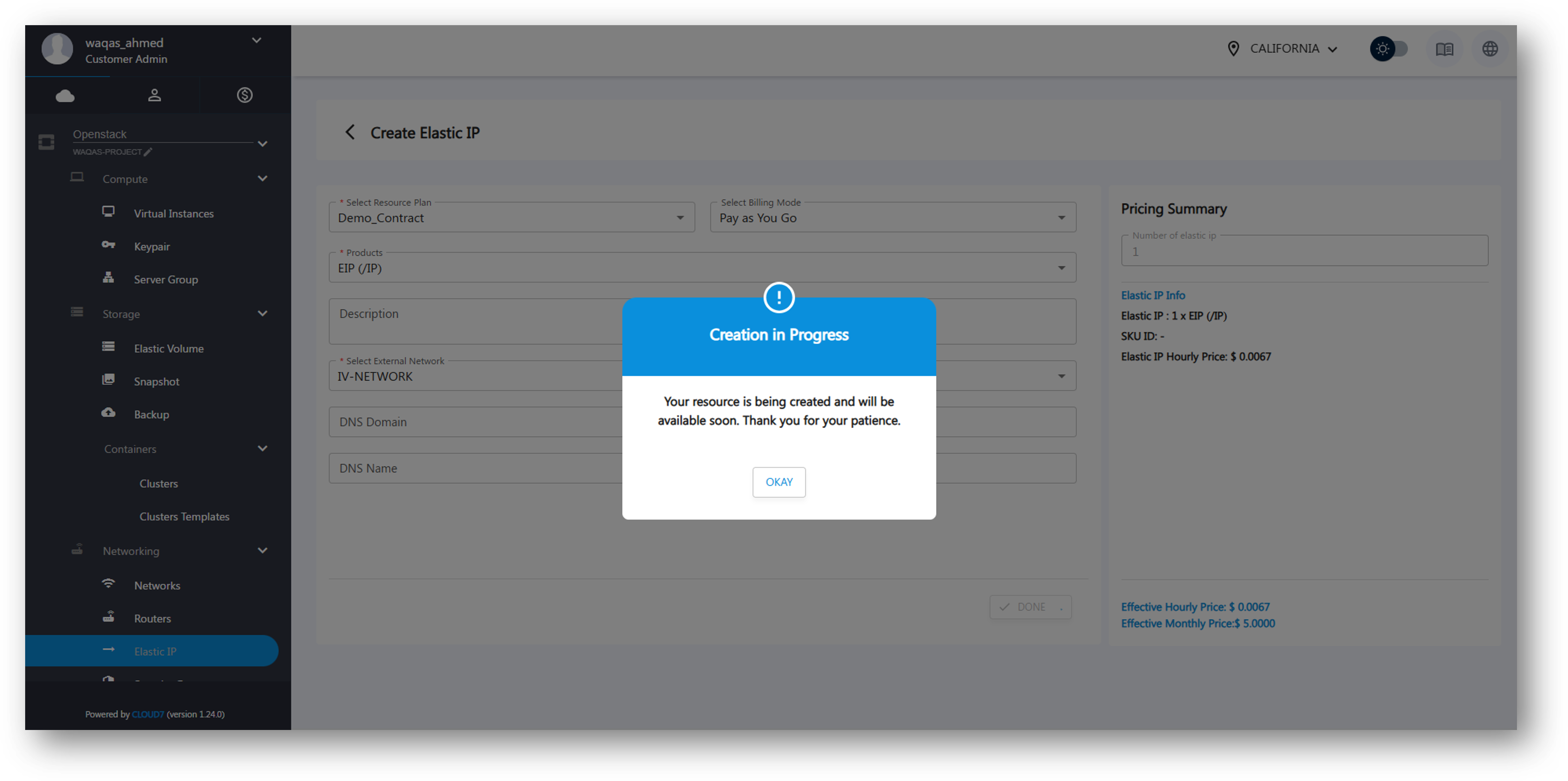
- Click Done to allocate the Elastic IP and a confirmation prompt will appear to confirm the allocation of IP in progress.
Managing Elastic IPs #
Once an Elastic IP is created, it can be assigned to a virtual instance, detached from it or released when not needed. Follow the steps below:
Attaching Elastic IP to a Virtual Instance #
- Navigate to Providers >> OpenStack >> Compute >> Virtual Instances.
- Click on the Virtual Instance Name to open its details page.
- Locate the Attach EIP option.
- Select the Elastic IP from the available list.
- Confirm the attachment. The instance will now have a public IP for external access.
Detaching an Elastic IP #
- Navigate to the Virtual Instance Details Page.
- Select Detach EIP to remove the assigned public IP.
Releasing an Elastic IP #
- If an Elastic IP is no longer needed, it can be released to free up resources.
- Navigate to Providers >> OpenStack >> Networking >> Elastic IP.
- Click on the Actions menu next to the IP and select Delete.