
Quality of Service (QoS) Policies in Cloud7 allow customers to manage and optimize network traffic by defining rules that control bandwidth, latency, and packet flow. These policies help prioritize network traffic for different workloads, ensuring better performance and resource allocation.
QoS Policies provide fine-grained control over network traffic, ensuring optimized performance and prioritization of critical workloads. Customers can create, configure, and manage bandwidth, DSCP, and packet rate rules based on their specific needs.
List QoS Policies #
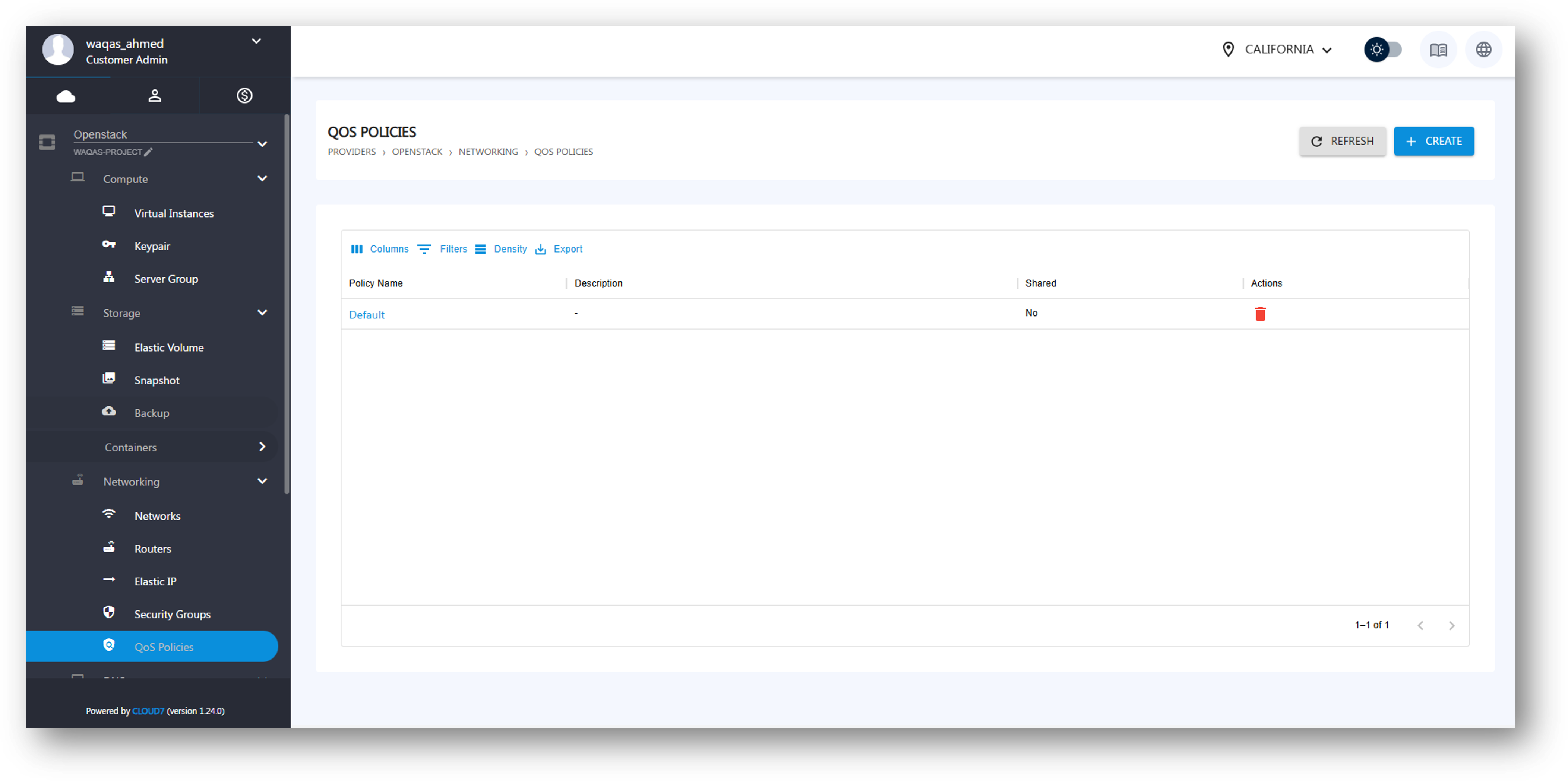
To view existing QoS Policies:
- Login to the Cloud7 customer interface.
- Navigate to Providers >> <Provider Name> >> Networking >> QoS Policies.
- The listing page displays:
- Policy Name: The name of the QoS Policy.
- Description: A brief summary of the policy’s purpose.
- Shared: Indicates if the policy is shared across multiple projects.
- Actions: Options to manage or delete the policy.
Create QoS Policy #
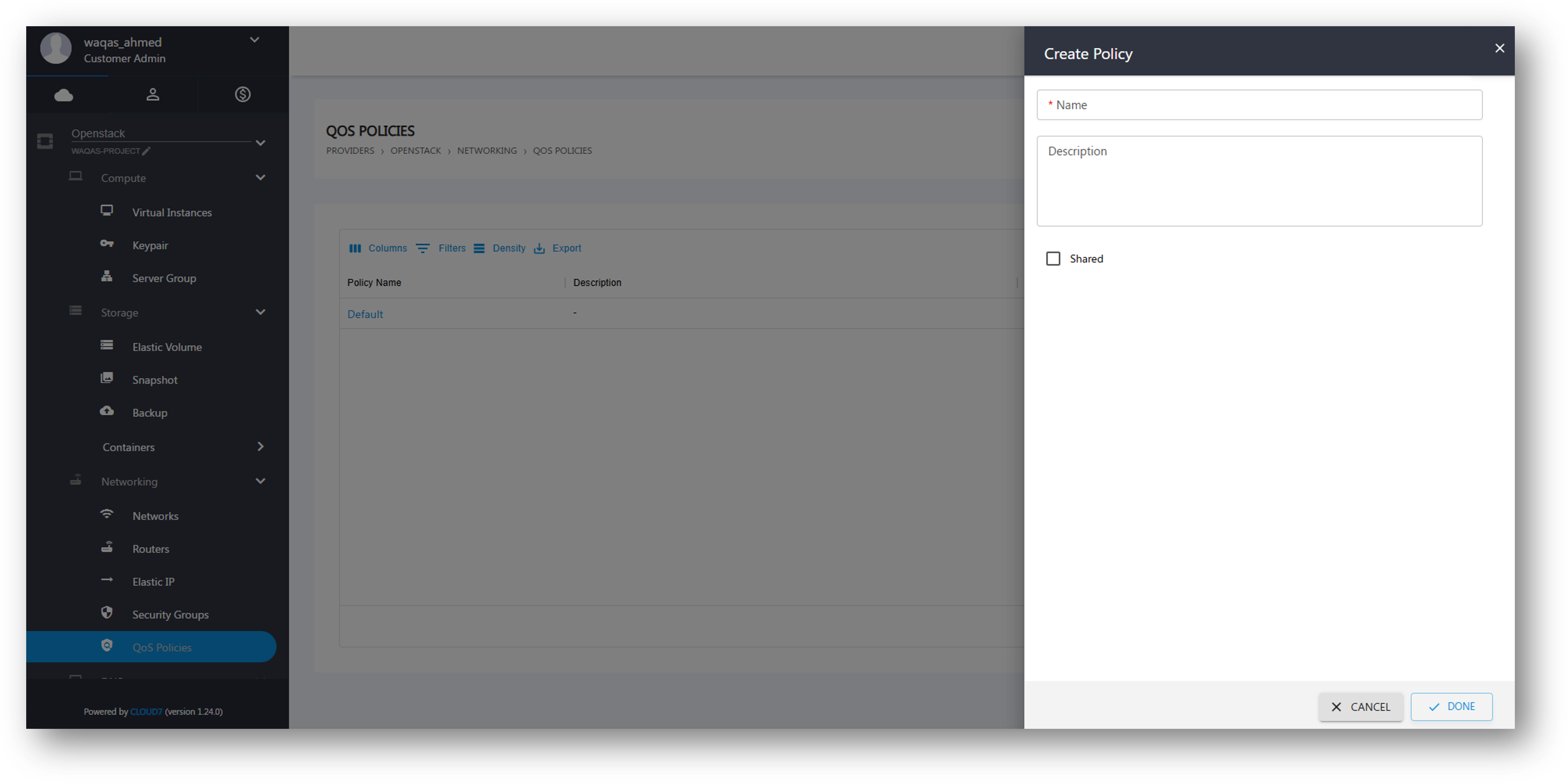
To create a new QoS Policy:
- Click the Create button at the top.
- Enter the required details:
- Name: Provide a meaningful name for the QoS Policy.
- Description: Describe the purpose of the policy (optional).
- Click Create to save the policy.
View QoS Policy Details #
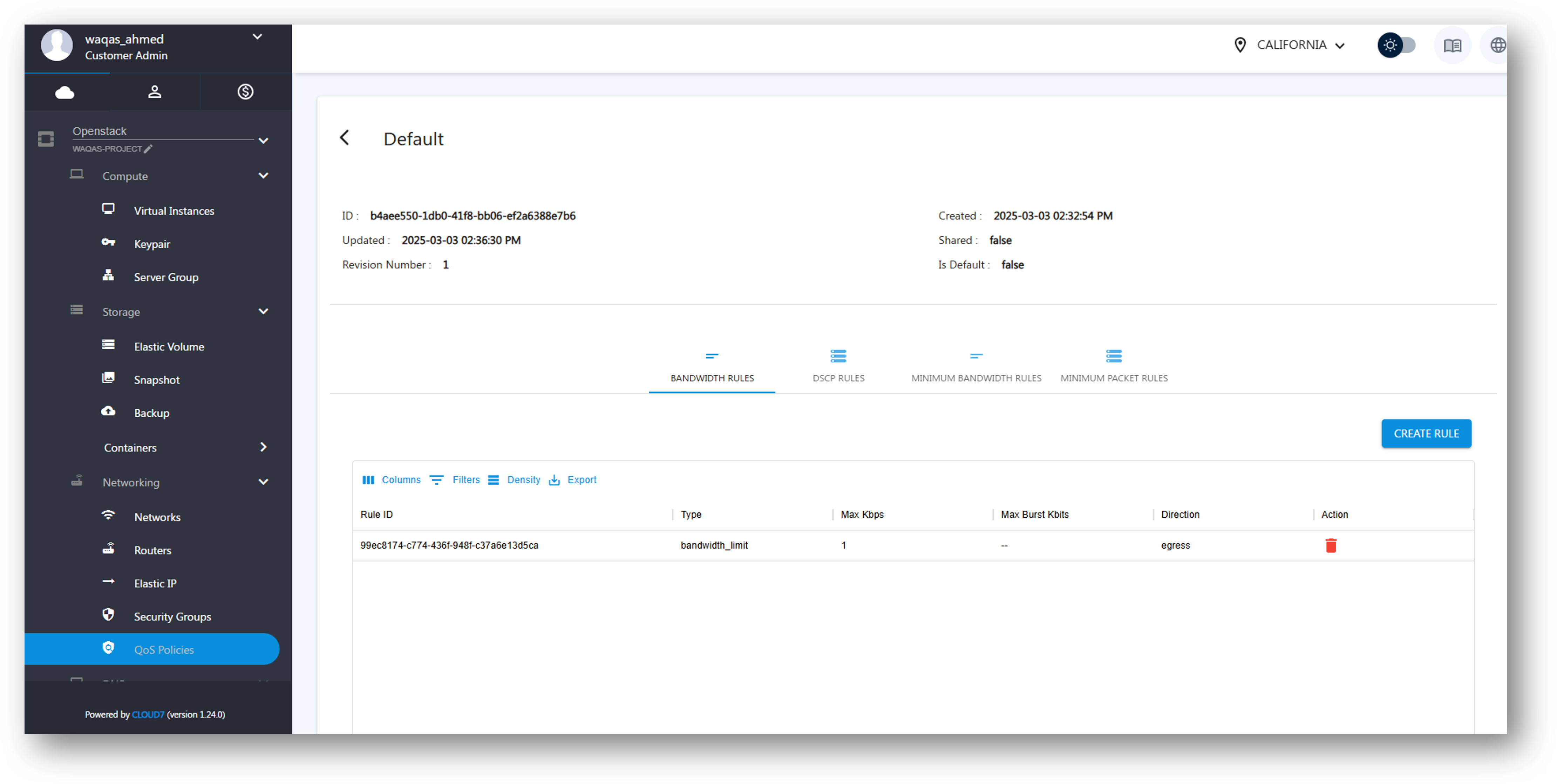
To view a QoS Policy and manage its rules:
- Click on the Policy Name in the listing page.
- The QoS Policy Details Page appears, showing different rule categories:
- Bandwidth Rules
- DSCP Rules
- Minimum Bandwidth Rules
- Minimum Packet Rules
Customers can create and configure these rules based on network requirements.
Configure QoS Policy Rules #
Customers can define specific rules under each category to manage network traffic.
Bandwidth Rules #
Bandwidth rules control the maximum allowed network bandwidth for traffic.
To create a bandwidth rule:
- Click Add Bandwidth Rule.
- Provide the required details:
- Max Kbps: Maximum bandwidth in kilobits per second.
- Max Burst Kbps: Maximum burst size for temporary bandwidth spikes.
- Click Save to apply the rule.
DSCP (Differentiated Services Code Point) Rules #
DSCP rules help mark packets with priority levels for traffic management.
To add a DSCP rule:
- Click Add DSCP Rule.
- Specify the DSCP Mark value (a numeric value defining priority).
- Click Save.
Minimum Bandwidth Rules #
Minimum Bandwidth Rules ensure a minimum guaranteed bandwidth for a network flow.
To configure a minimum bandwidth rule:
- Click Add Minimum Bandwidth Rule.
- Enter the Min Kbps (the guaranteed minimum bandwidth in kilobits per second).
- Click Save.
Minimum Packet Rate Rules #
Minimum Packet Rate Rules ensure a guaranteed packet transmission rate.
To add a rule:
- Click Add Minimum Packet Rule.
- Define the Min Packet Rate (minimum packets per second).
- Click Save.
Delete QoS Policy or Rules #
- To delete a specific rule:
- Navigate to the QoS Policy Details Page.
- Under the respective rule category, click Delete next to the rule.
- To delete a QoS Policy:
- Go to Providers >> <Provider Name> >> Networking >> QoS Policies.
- Click Delete in the Actions column next to the policy.
- Note: A QoS Policy cannot be deleted if it is assigned to an active network resource.