
Security Groups in Cloud7 are a set of firewall rules that control inbound and outbound traffic to virtual instances. Customers can create and manage Security Groups to define network access policies for their infrastructure.
Security Groups help control access to instances by defining traffic rules. Customers can create groups, configure rules, and restrict or allow traffic as per their security policies.
List Security Groups #
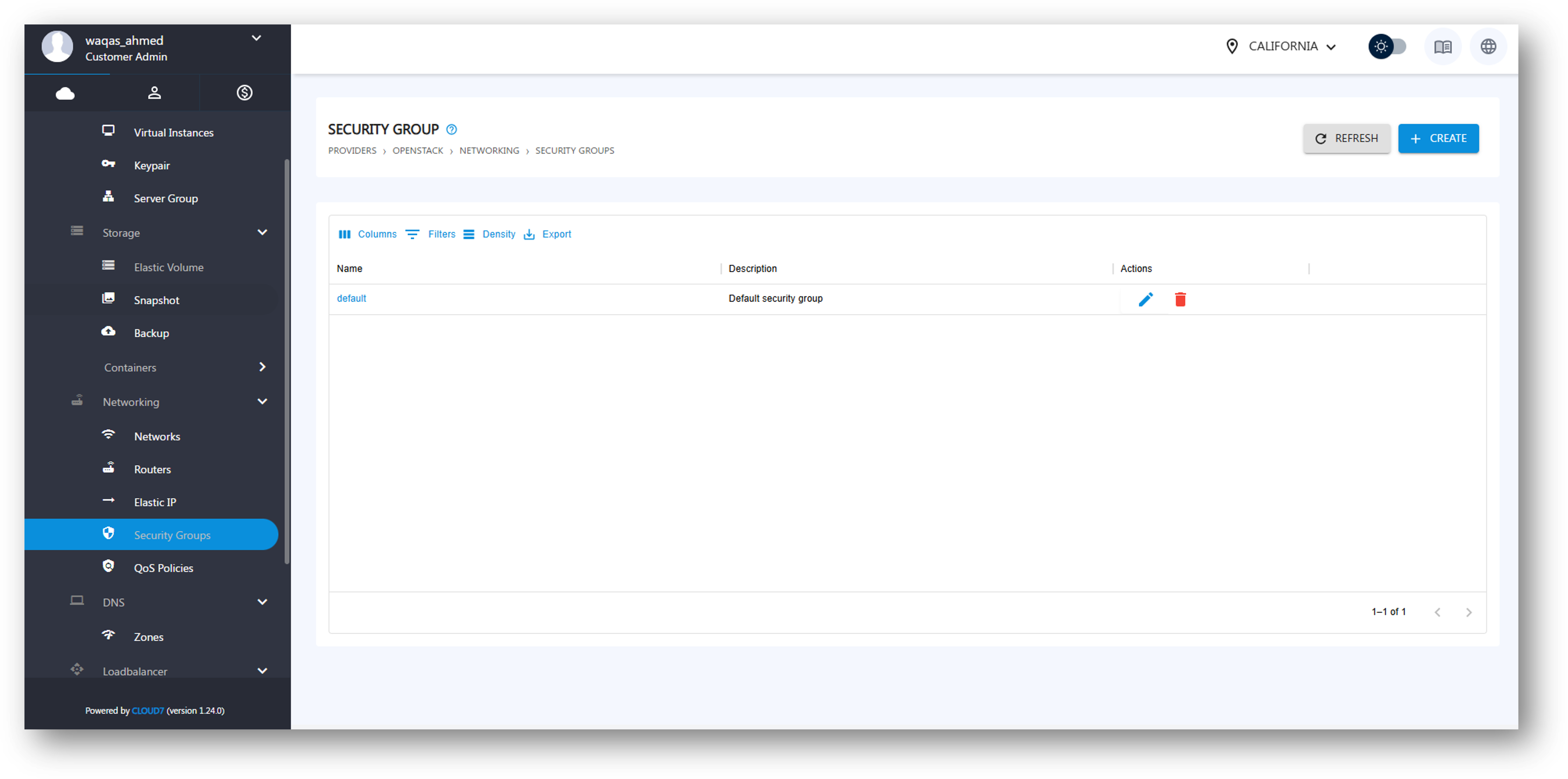
To view existing Security Groups:
- Login to the Cloud7 customer interface.
- Navigate to Providers >> <Provider Name> >> Networking >> Security Groups.
- The listing page displays:
- Name: The Security Group name.
- Description: A brief summary of the Security Group’s purpose.
- Actions: Options to manage or delete the Security Group.
Create Security Group #
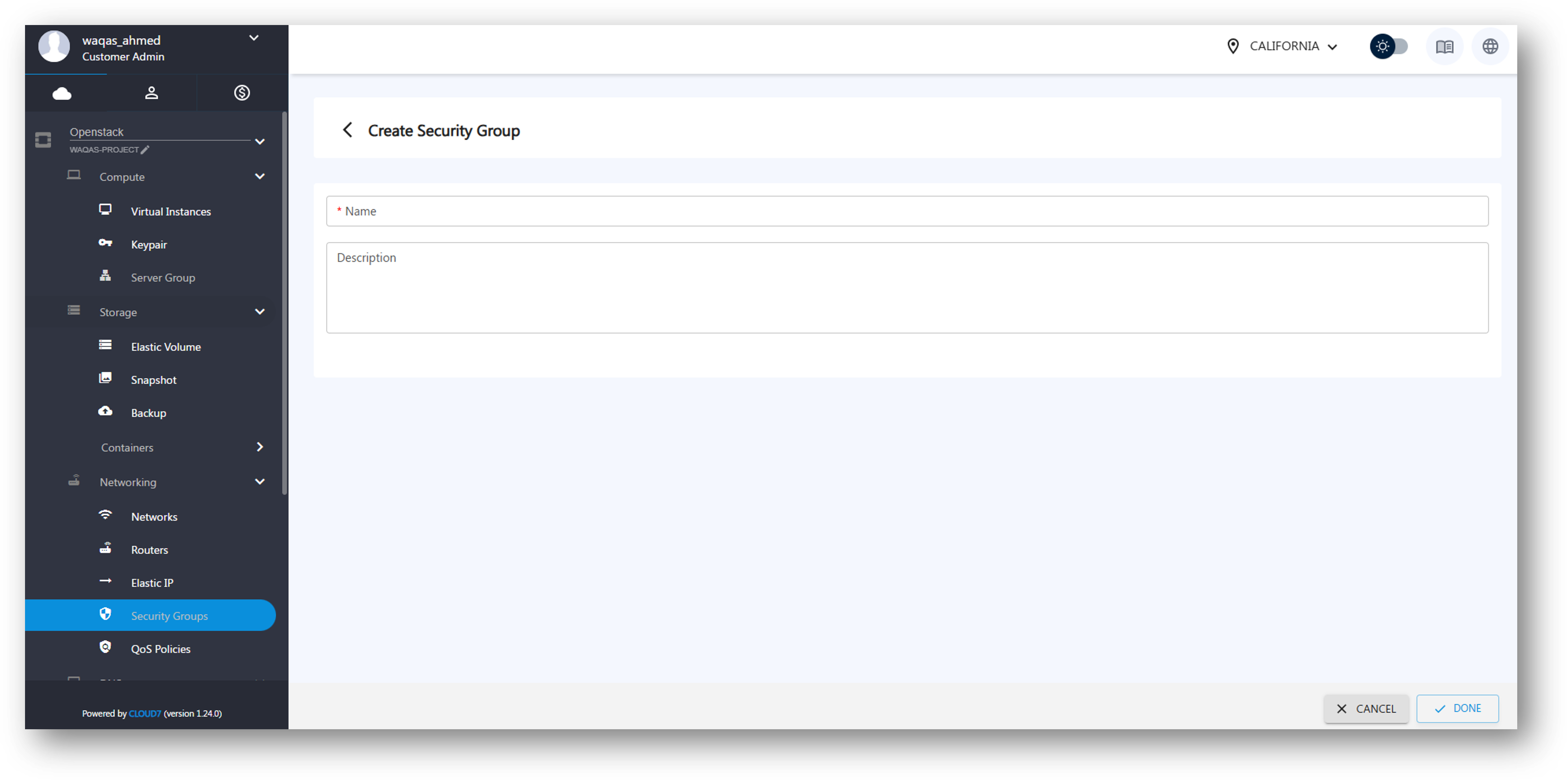
To create a new Security Group:
- Click on the Create button at the top.
- Enter the following details:
- Name: Provide a meaningful name for the Security Group.
- Description: Describe its purpose (optional).
- Click Create to add the Security Group.
View Security Group Details #
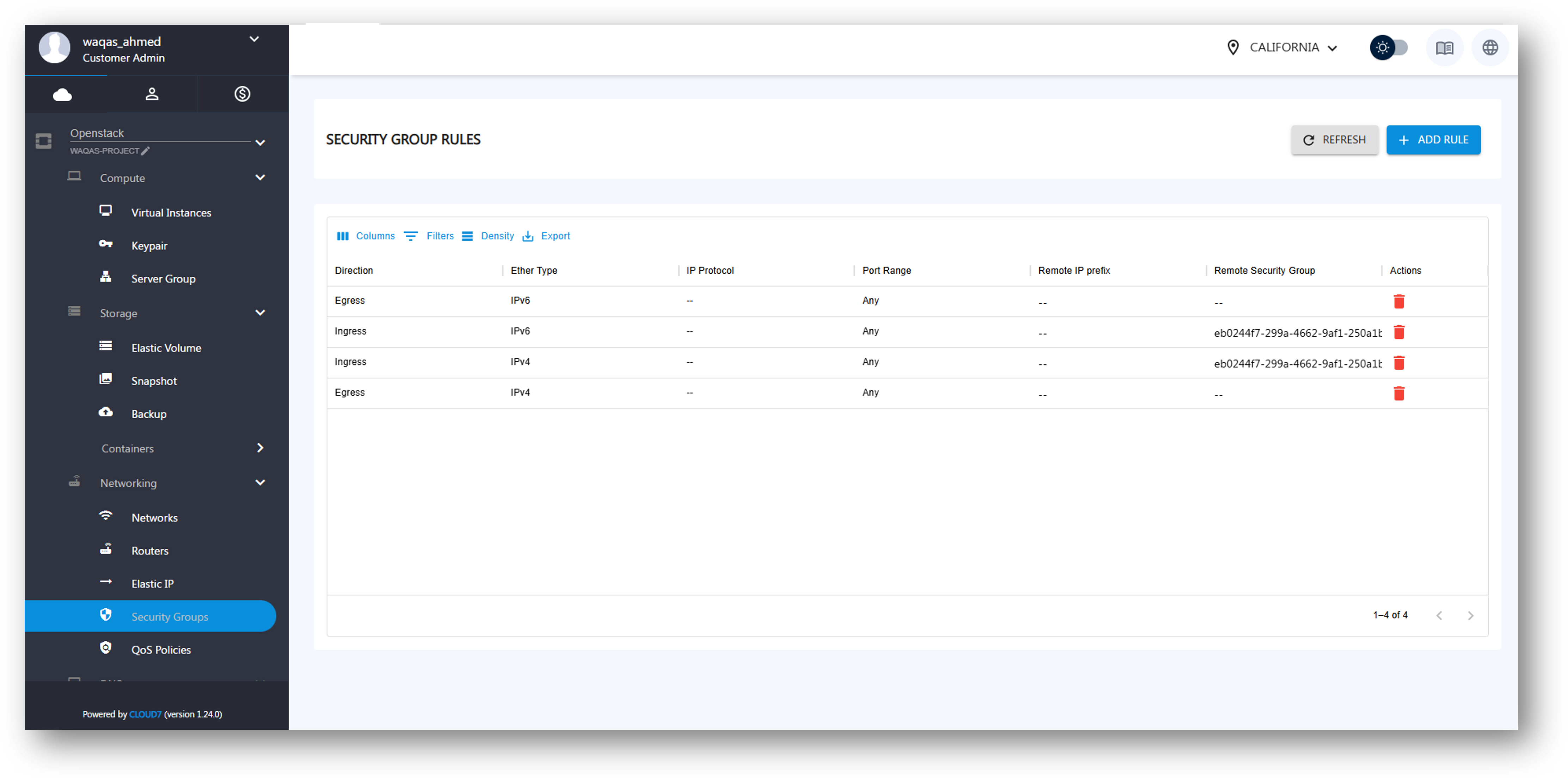
To view a Security Group’s rules:
- Click on the Security Group Name from the listing page.
- The Security Group details page displays all configured rules with the following columns:
- Direction: Specifies if the rule is Ingress (incoming traffic) or Egress (outgoing traffic).
- Ether Type: Indicates the IP version (IPv4 or IPv6).
- IP Protocol: Defines the communication protocol (TCP, UDP, or ICMP).
- Port Range: The allowed port range for the rule.
- Remote IP Prefix: Defines a specific IP range (CIDR) that can access the instance.
- Remote Security Group: If selected, allows communication between instances within the specified Security Group.
- Actions: Options to delete or modify rules.
Add Rule to a Security Group #
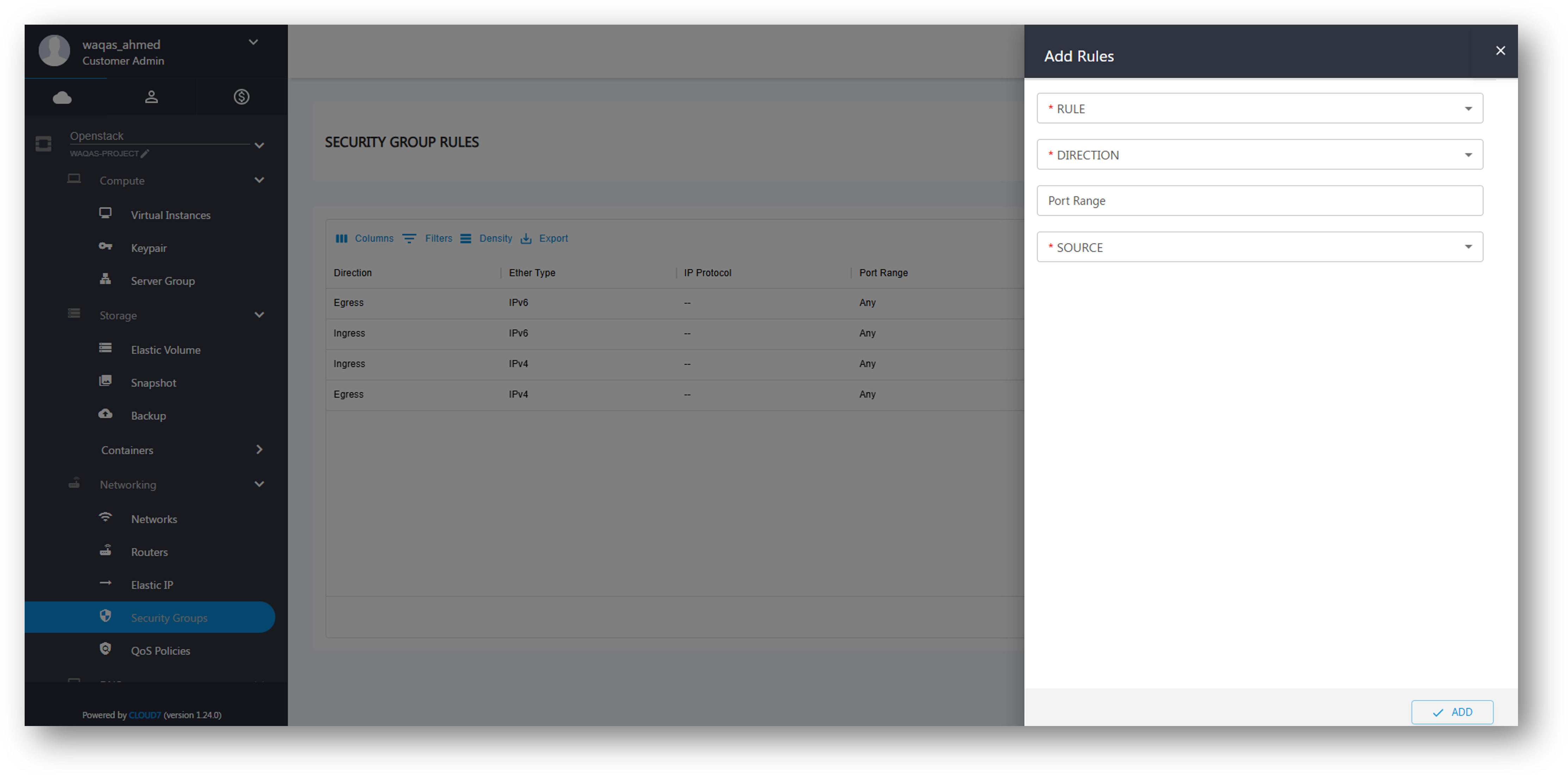
To define access policies, rules can be added to a Security Group:
- Click the Add Rule button in the Security Group details page.
- Fill in the required details:
- Rule: Choose the protocol (TCP, UDP, or ICMP).
- Direction:
- Ingress: Controls incoming traffic.
- Egress: Controls outgoing traffic.
- Port Range: Specify a single port (e.g., 22 for SSH) or a range (e.g., 80-443 for web traffic).
- Source:
- CIDR: Define a custom IP range (e.g., 192.168.1.0/24).
- Security Groups: Allow traffic from another Security Group.
- Select Ether Type (IPv4 or IPv6).
- Choose a Security Group from the list.
- Click Add Rule to apply the new security rule.
Delete Security Group or Rule #
Delete a Rule #
- Navigate to the Security Group Details Page.
- Under the Actions column, click Delete for the specific rule.
Delete a Security Group #
- Navigate to Providers >> <Provider Name> >> Networking >> Security Groups.
- In the Actions column, click Delete next to the Security Group.
- Note: A Security Group cannot be deleted if it is assigned to an active instance.