
Marketplace #
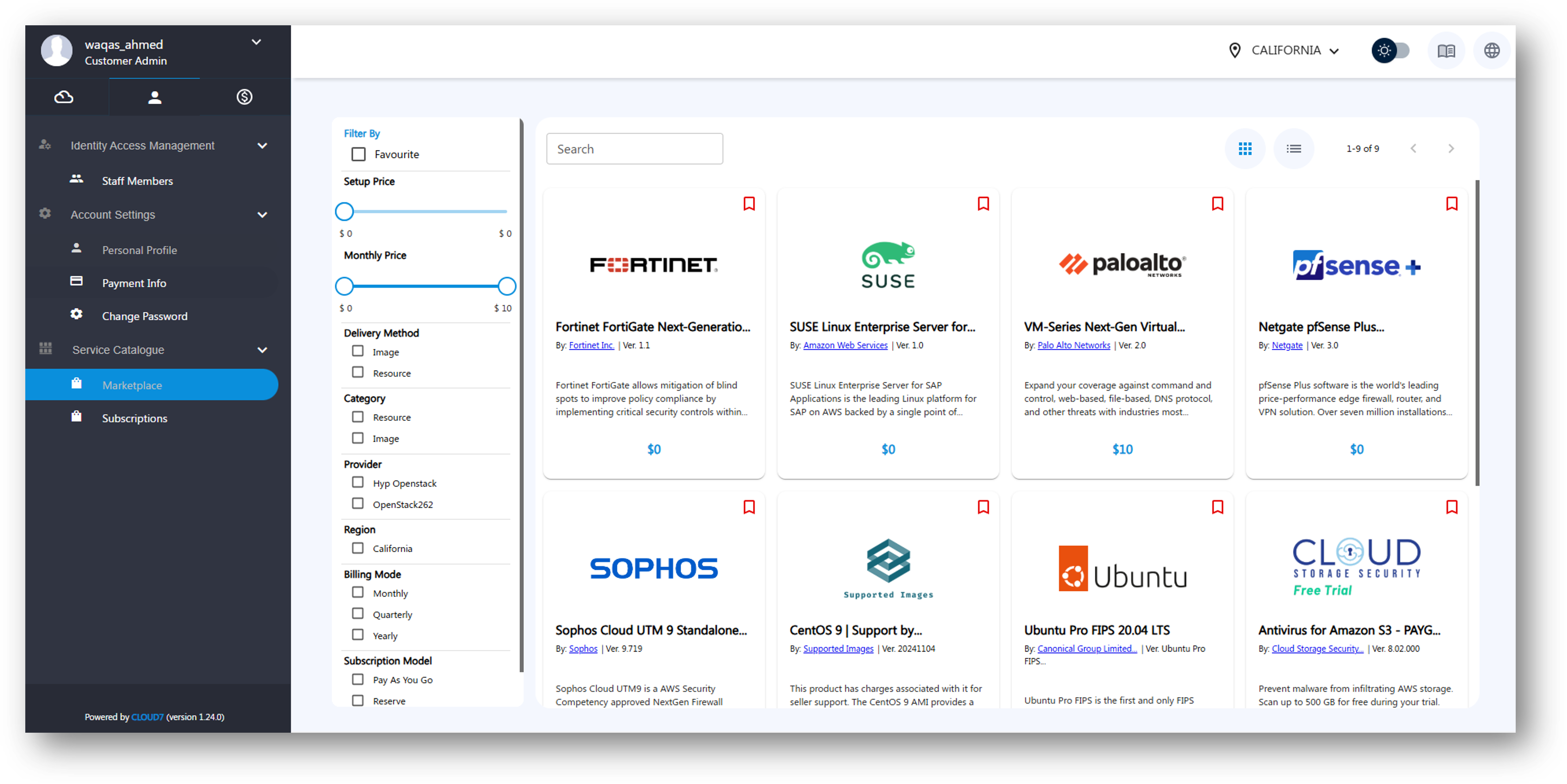
Cloud7 Marketplace provides a streamlined way for customers to discover and deploy cloud-based solutions. It allows Cloud Admins to publish various types of offerings, including:
- Image-based products: Pre-configured software images that can be deployed as virtual instances.
- Resource plans: Predefined cloud infrastructure configurations tailored to customer needs.
- Services: Additional offerings such as managed services, consultancy, and custom integrations.
Unlike traditional marketplaces with a cart system, Cloud7 Marketplace enables direct deployment. When a customer selects an offering, they are guided to the relevant provisioning page, where the selected product or service is pre-populated for deployment.
Accessing the Marketplace #
- Log in to Cloud7 and navigate to the Marketplace section from the main dashboard.
- Browse through the available offerings categorized by product type, resource plans, and services.
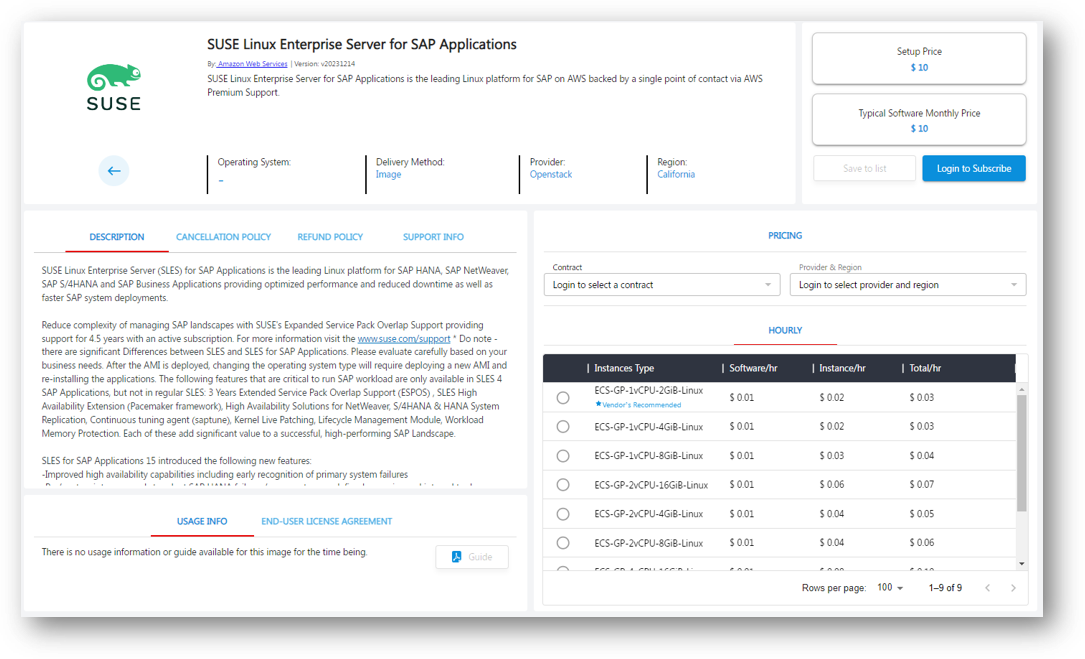
- Click on any offering to view its details, including pricing, specifications, and deployment options.
Deploying an Offering #
For Image Plans:
- Select the desired image-based product from the Marketplace.
- Click Deploy Now to proceed.
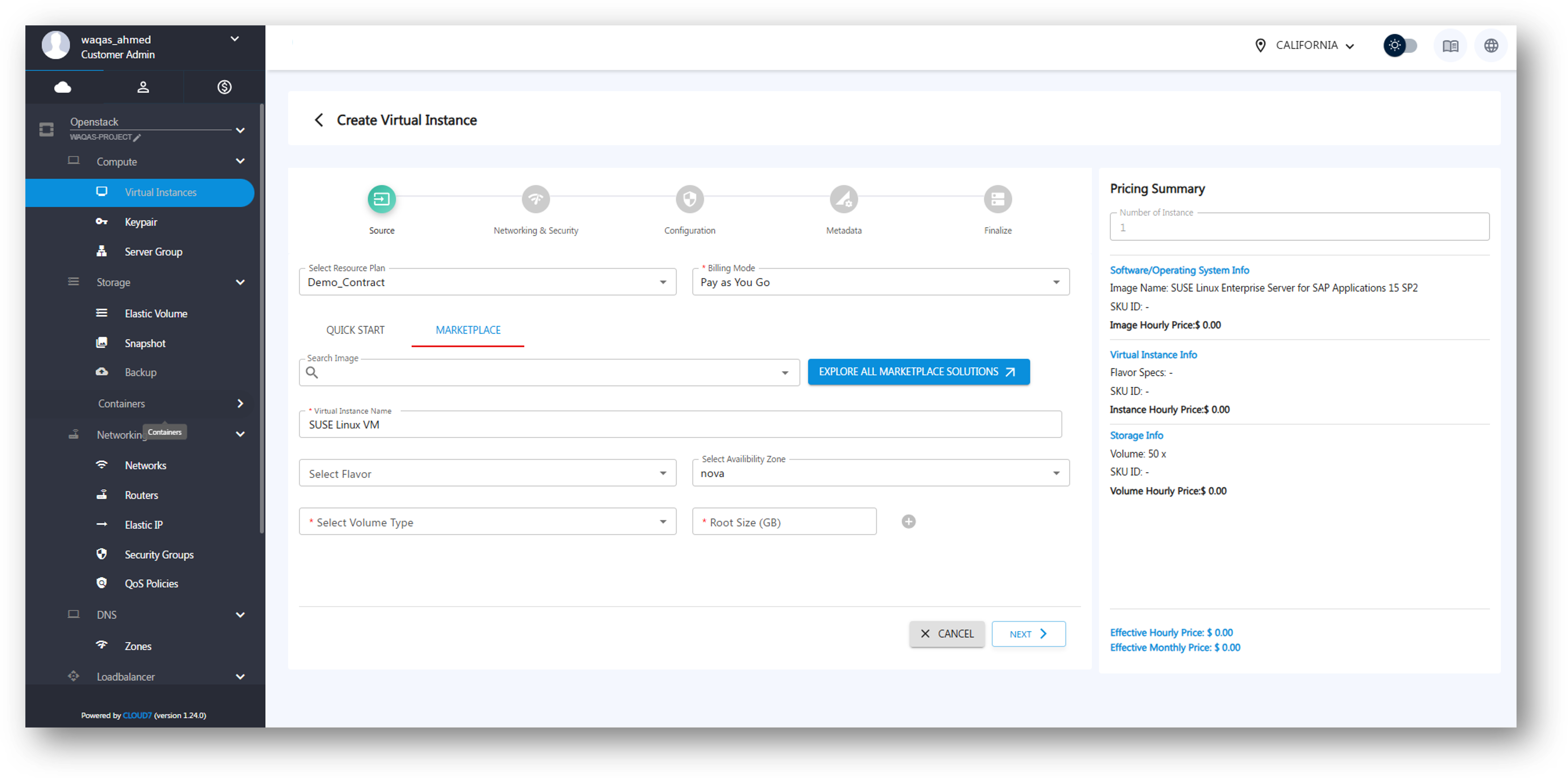
- You will be redirected to the Virtual Instance Creation page, where the pre-configured software image is already selected.
- Adjust instance specifications as needed (vCPU, RAM, storage, etc.).
- Click Confirm & Launch to deploy the instance.
For Resource Plans:
- Choose a resource plan that meets your requirements.
- Click Subscribe to proceed.
- Review the plan details and confirm the selection.
- The allocated resources will be provisioned automatically.
For Service Plans:
- Browse available services such as managed services or consulting.
- Select a service and click Request Service.
- Provide any required details and submit your request.
- The service provider will process your request and reach out for further steps.
Manage Subscriptions #
- Navigate to the My Deployments section to view and manage active instances, subscriptions, and service requests.
- Use the Billing & Reports section to track costs and usage.
Subscriptions #
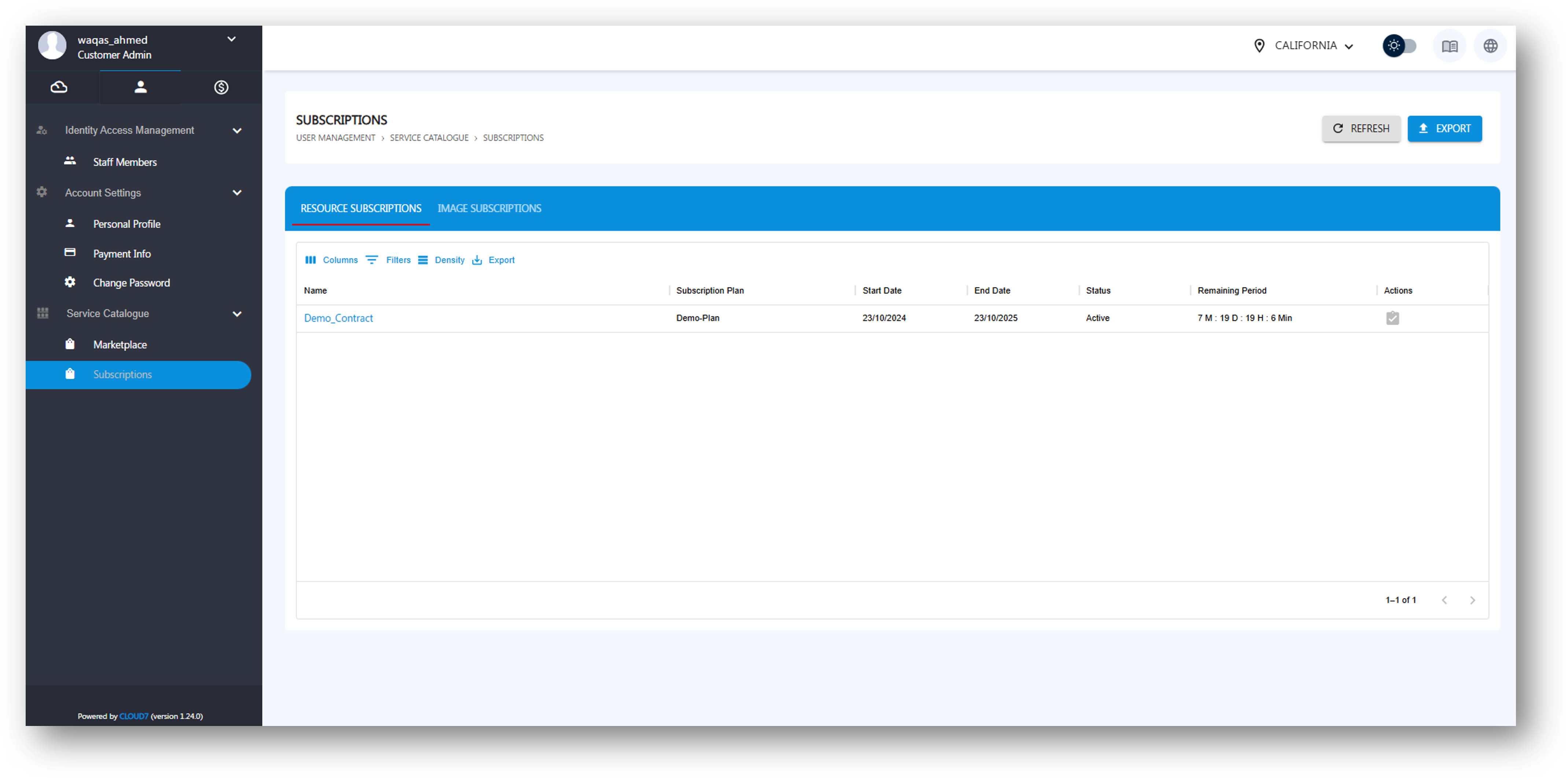
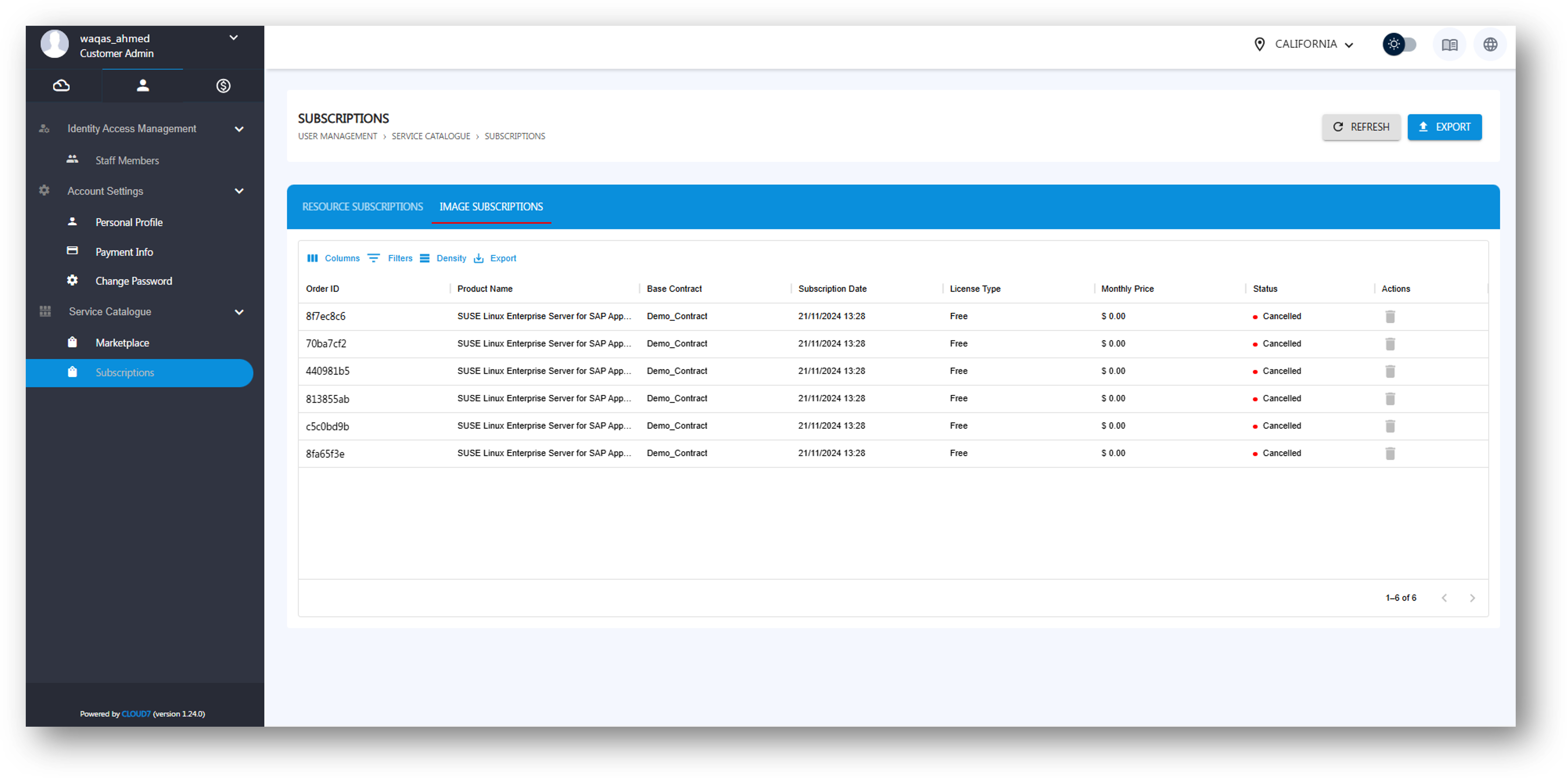
The Subscriptions section in Cloud7 allows customers to manage all their active and past subscriptions for Image-based products and Resource plans. Customers can track the status of their subscriptions, export subscription lists, and manage ongoing services.
Accessing Subscriptions #
To view and manage your subscriptions:
- Navigate to User Management in the main menu.
- Select Service Catalogue.
- Click on Subscription.
This will display a comprehensive list of all subscriptions associated with your account.
Subscription Statuses #
The Subscription page categorizes subscriptions into the following statuses:
- Active – Currently in use and billed accordingly.
- Pending – Awaiting approval or activation.
- Cancelled – Terminated subscriptions that are no longer in service.
- Expired – Subscriptions that have reached their end date and are no longer valid.
Exporting Subscription Lists #
Customers can export their subscription lists based on their needs. To do so:
- Click on the Export button available on the Subscription page.
- Select the format for export (CSV, Excel, etc.).
- Download the file for offline reference or reporting purposes.
By effectively managing subscriptions in Cloud7, customers can ensure seamless tracking and control over their cloud resources and services.